Learning goals
Find the information you need
Online texts use headlines, headings, menus, links, graphics and layout to guide readers. Start with a reading purpose: What am I trying to find? Then use a clear label to choose where to look and read the information you reach.
Learning intention: I can use and explain features that help me find information in print and online texts, and compare two online texts on the same topic.
- I can name the exact heading, link or graphic I used and explain what it helped me find.
- I can trace a route from a home page to a relevant subpage and report the information there.
- I can compare two same-topic pages for a stated purpose and design clearer labels or a simple layout.
Preparation model: A leaflet has subheadings “Opening times”, “What to bring” and “Getting there”. To find a bus stop, start with “Getting there”. Match your reading purpose to the label, then read the section.
Materials and time: Allow about 25–35 minutes with the supplied examples, paper and a pencil. No external account or website visit is needed.
Key vocabulary
Features and their reader jobs
- Headline
- A prominent title that signals what a page or article is about.
- Heading and subheading
- Labels for a topic and its smaller parts; they help readers scan and select text. They are not automatically links.
- Home page and subpage
- A site’s starting page often offers broad choices; a related subpage develops one part in more detail.
- Drop-down menu
- A control that reveals grouped choices. A clear label and another route can help readers who find the menu difficult.
- Link
- A labelled route to another page, section or file. Its words should predict the destination.
- Graphic and caption
- A picture, diagram, chart or map and words explaining it. A relevant graphic can clarify the nearby information.
- Layout
- The arrangement and spacing of words and images. Readers need readable text, useful groups and clear relationships.
Worked examples
Worked examples: read, choose and explain
All names and pages below are fictional learning examples. Pictures are static sketches, not clickable websites. The labelled demonstration links below move within this lesson.
1. Scan a print leaflet
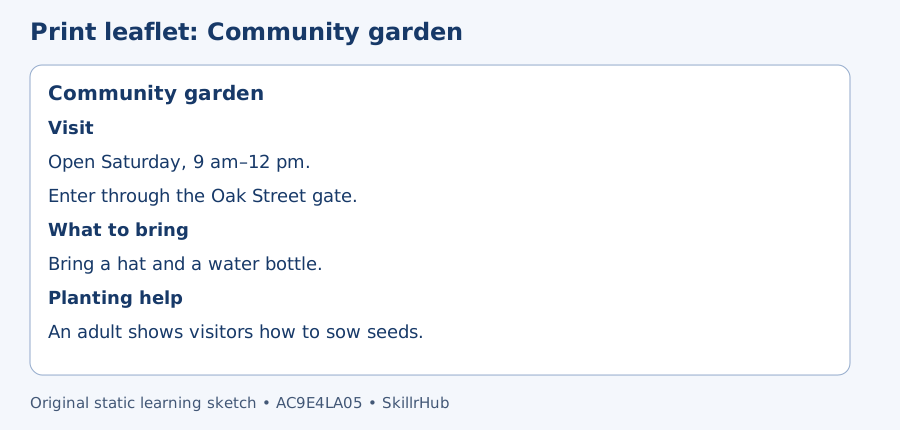
Think aloud: “I need to pack for the visit. I scan for What to bring, then read hat and water bottle. The subheading helps me select the right text instead of treating every detail as equipment.”
2. Follow a home-page route
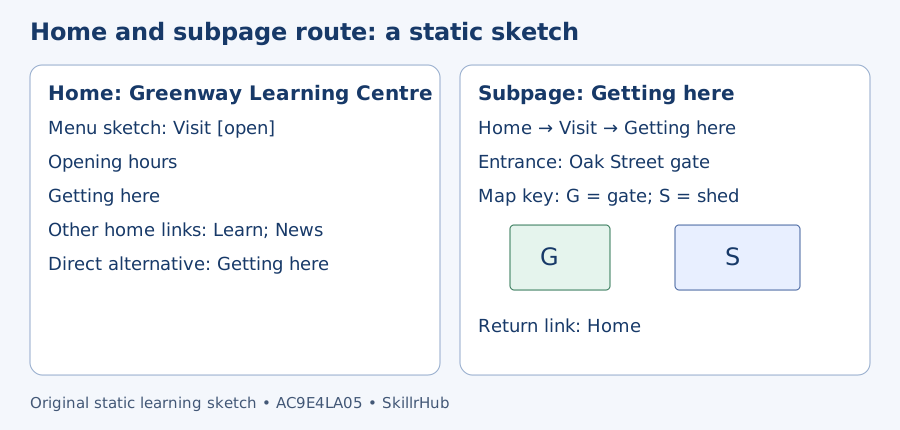
Greenway Learning Centre — Home
Use the Visit menu or the direct link to find the entrance.
Visit — show page choices
Alternative route: Getting here.
Opening hours — demonstration subpage
Saturday, 9 am–12 pm.
Getting here — demonstration subpage
Use the Oak Street gate beside the shed.
Think aloud: “My question is where to enter. Home → Visit → Getting here is a useful path. Getting here says Oak Street gate. The direct Getting here link offers another route. I read the destination; I do not assume the menu label contains the complete answer.”
3. Compare same-topic pages for a purpose
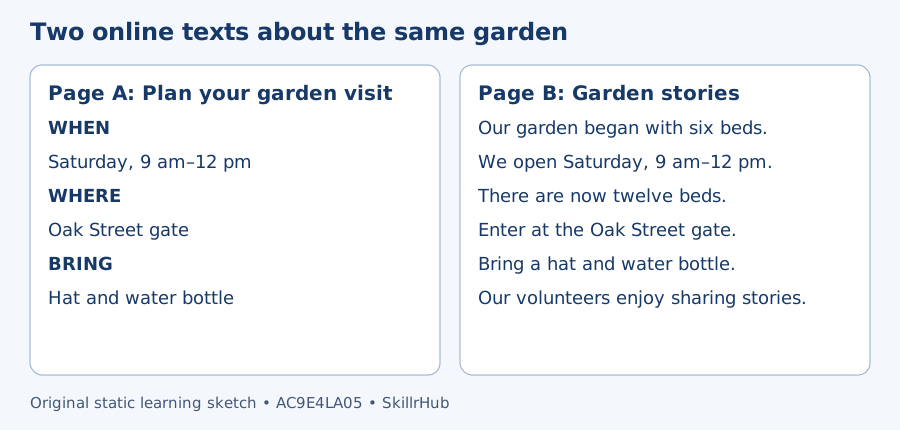
Think aloud: “To pack quickly, I prefer A’s Bring section. B also mentions a hat and water bottle, but I must find them among history details. For learning how the garden changed, B supplies information that A does not show. A page is useful for a purpose, not automatically best for every reader.”
4. Improve links, graphics and layout
A link labelled More could lead anywhere. Garden opening hours predicts a useful destination. Keep the destination consistent with the label. Put a labelled gate map beside arrival directions and add a caption explaining the entrance. A decorative flower may suit the theme but does not show where to enter. Use readable spacing, clear headings and a layout that works on a small screen; do not crowd or cover the words.
Curriculum coverage
Curriculum coverage and boundaries
AC9E4LA05: identify text navigation features of online texts that enhance readability including headlines, drop-down menus, links, graphics and layout
- E1: investigating the features used for texts such as headings and subheadings in print text, home pages and subpages in digital texts, and how these help the reader select text for a purpose
- E2: comparing the features of texts on similar topics online
E1 is taught through the garden leaflet and the Home → Visit → Getting here route. E2 is taught through the two garden pages, with both their shared details and different organisation visible. The redesign task brings headlines, menus, links, graphics and layout together.
Official source: Australian Curriculum Version 9.0. Curriculum wording is attributed to ACARA; the garden examples are original SkillrHub teaching models.
Prerequisite: read short labelled sections, with usual reading or communication support as needed. Keep the focus: finding and explaining information, not coding websites or memorising technical accessibility rules. A clear page is not automatically accurate or trustworthy; judging factual reliability is a separate question.
Four-step lesson
Four-step lesson
- Model: Name the reading purpose “What should I pack?” and scan the leaflet. Say why What to bring is useful, then read its two items.
- Guide: Together follow the demonstration menu to Getting here. Ask: “What is the exact entrance? Could we reach it another way?” Look for the Oak Street gate and the direct alternative link.
- Apply: Compare the same-topic garden pages. Partners explain which features help packing and which help learning the garden history. Then each student sketches clearer labels and groups for a new club page.
- Check: Give the unseen exit task below. Require the route, the information found and a reason for a layout choice. If a learner only names a feature, ask what specific information it helps them find.
Misconceptions and support
Common mistakes and quick fixes
- “Every heading is a link.” A heading can label text without taking you elsewhere. In the examples, links are explicitly labelled and demonstrated.
- “More pictures and links always help.” Choose relevant graphics and clear destinations; crowding or unrelated decoration can make reading harder.
- “The menu label is the answer.” A label guides your choice. Read the destination to find the exact detail.
- “One page is best for everyone.” Compare for a purpose. A travel map helps a visitor find an entrance; a history paragraph helps a different question.
- “Neat layout proves the facts.” Readability helps finding information but does not independently verify it.
Support, core and extend
Support: read the supplied text aloud, offer two labelled destinations and let the learner point or explain using their usual support. Core: trace a multi-step route and compare two layouts with evidence. Extend within this code: redesign a page for two reading purposes while preserving all supplied facts and giving an alternative route to a menu destination.
Questions and answers
Important questions and answers
- How does a headline differ from a link?
- A headline signals the topic. A link leads somewhere; a headline only does that if it is also made into a link.
- Why use subheadings in a print leaflet?
- They group related details so readers can scan for the section matching their purpose.
- Is Page B missing the garden visit details?
- No. Both pages give the time, gate and items. B mixes them with history; A groups them for quick planning.
- What makes a graphic useful?
- It represents information relevant to the question, has understandable labels or a caption, and is placed where the reader can connect it to the words.
Assessment-style question and review hint
A club site offers Home → Visit → Session times. The destination says “Wednesdays, 3 pm”. Explain the route and the detail found. Model: I choose Visit from Home, then Session times. Sessions are on Wednesdays at 3 pm. Review hint: separate a navigation label from the actual information on its page.
Exit ticket
Exit ticket: find, compare and improve
New static example: Home has links “Visit” and “Activities”. Visit has “Map” and “Times”. Map says “Meet at the west gate”. Page A labels this detail under Meeting place. Page B puts the same detail inside a long paragraph about past events.
- Write the path from Home to the meeting information and give the meeting place.
- Which page helps you scan for that place? Compare a feature from each.
- Replace a link labelled “More” that leads to the meeting map. Explain your new label.
Expected evidence: Home → Visit → Map; west gate. A’s Meeting place label supports scanning, while B contains the detail among past-event text. A useful replacement is Meeting map because it predicts the destination.
Adult check: require all three actual responses. Accept equivalent clear labels and communication methods. If the path is wrong, trace each supplied choice; if the comparison is vague, ask the learner to name both the section label and the mixed paragraph. Do not treat completion alone as mastery.
🎥 Optional Video Lesson
The SkillrHub lesson remains the primary learning resource. This optional video reinforces the explanation; you can complete the lesson and practice without watching.
Before you watch:
- Pause after each worked example.
- Try the examples yourself.
- Return to the SkillrHub lesson before continuing.
Recommended: Interpreting text features | Reading | Khan Academy
Khan Academy — Use headings, images and other text features to find and interpret information.
As you watch: Which feature helps you decide where to look next?
Load video player Loads YouTube in this lesson. See the video notice below.
Try it: On a familiar learning page, identify a heading, a useful link and a graphic. Explain how each helps a reader.
Video unavailable, inaccurate or unsuitable for this year? Report a video problem to SkillrHub by email. You can continue with the written lesson and practice resources.
About these videos
Videos are curated from trusted independent educational creators and played through YouTube. Rights remain with their respective owners. Inclusion does not imply that a creator or YouTube endorses SkillrHub.
YouTube’s terms and privacy policy apply to its player. Advertising, recommendations and external links may appear, and videos may change or become unavailable. SkillrHub’s written lessons and practice resources remain available separately.
To report a content, suitability or rights concern, email skillrhublearning@gmail.com with the lesson code and video link. Please do not include personal student information.
Curriculum equivalents: Victoria, NSW and international
New Zealand: broad primary English reading and viewing alignment for using text features and selecting information; teachers should confirm the current phase and local sequence. This is not a claim of exact code equivalence.
Curriculum equivalents for Text navigation features of online texts that enhance readability including...
Mapped skill: identify text navigation features of online texts that enhance readability including headlines, drop-down menus, links, graphics and layout
These references identify matching or closely related learning. Curriculum sequence, terminology and depth vary, so teachers should use the mapped skill and lesson difficulty to confirm suitability.
| Region | Curriculum framework | Closest level or code |
|---|---|---|
| Australia | Australian Curriculum v9.0 | AC9E4LA05 · Year 4 |
| Victoria | Victorian Curriculum F–10 Version 2.0 — English | VC2E4LA05 · Level 4 |
| New South Wales | NSW English K–10 Syllabus (2022) | EN2-RECOM-01 · Stage 2 |
| United States (USA) | Common Core State Standards for English Language Arts | Grade 4 |
| Canada (Ontario) | Ontario Curriculum — English | Grade 4 |
| United Kingdom (England) | National Curriculum in England — English | Year 5, Key Stage 2 |
| India | NCERT / CBSE — English | Class 4 |
Australian Curriculum v9.0 is the canonical source for this SkillrHub lesson. Victoria and NSW entries name the closest published state codes or outcomes; international entries are planning references rather than claims of identical curricula.
Help improve SkillrHub
Questions or feedback?
Ask about this lesson, suggest an improvement or report an error. Facebook opens only when you choose an option below.
Topic reference: AC9E4LA05 — AC9E4LA05: Identify text navigation features of online texts that enhance readability including headlines, drop-down menus, links, graphics and layout
Privacy: Please don’t share personal student or school information. Younger students should ask a parent, guardian or teacher to post on their behalf.